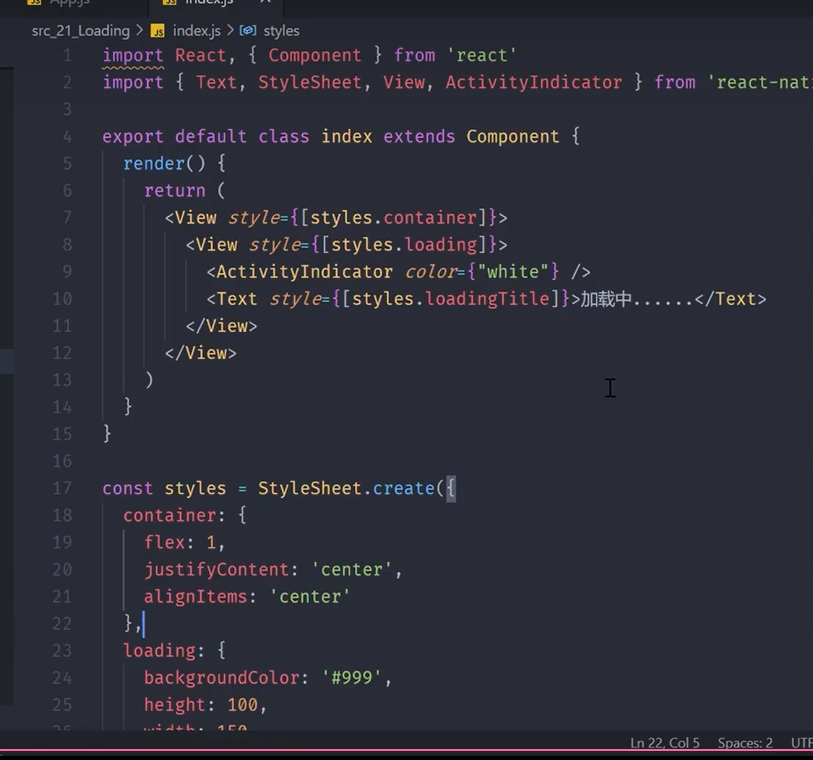
基础
StyleSheet 是 rn 中声明样式的 api
RN 中的样式与 css 的不同
- 没有继承
- rn 中的继承只发生在 Text 组件上
- 样式采用小驼峰命名
- fontSize VS font-size
- 所有尺寸都没有单位
- width:100
- 有些特殊的样式
- marginHorizontal(水平外边距) marginVertical (垂直外边距)
rn 样式的声明方式
通过 style 属性直接声明
- 属性值为对象:<组件 style=>
- 属性值为数组:<组件 style = {[{样式},{样式}]}>
在 style 属性中调用 StyleSheet 声明的样式
- 引入 import{StyleSheet,View} from 'react-native'
- 声明 const styles = StyleSheet.create({foo:{样式},bar:{样式 2}})
- 使用
import { Text, View, StyleSheet } from "react-native";
import React, { Component } from "react";
export default class App2 extends Component {
  render() {
    return (
      <View style={{ marginHorizontal: 20, backgroundColor: "#dfb" }}>
        <Text style={[styles.red, styles.fontLarge]}>index</Text>
      </View>
    );
  }
}
const styles = StyleSheet.create({
  red: {
    color: "#e33",
  },
  fontLarge: {
    fontSize: 40,
  },
});
Flexbox 弹性布局
- 容器(container)
- 采用 Flex 布局的元素 称为 Flex 容器(flex container) 简称容器
- 项目 item
- 容器所有子元素 称为 Flex 项目 flex item 简称项目
- 主轴 main axis
- 交叉轴 cross axis
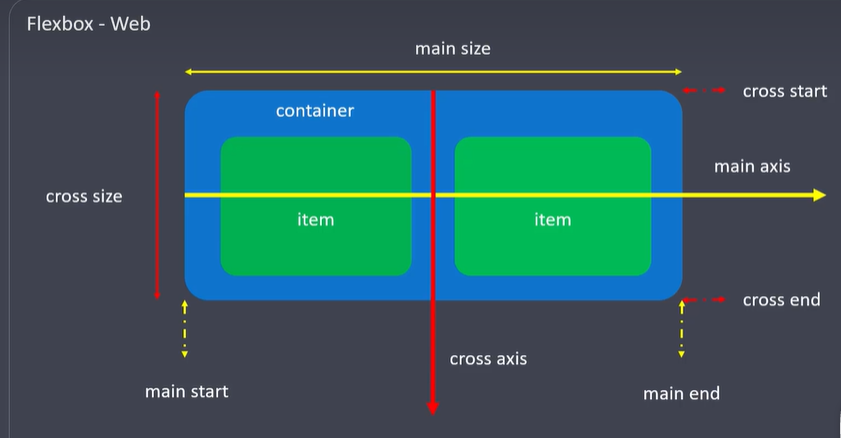
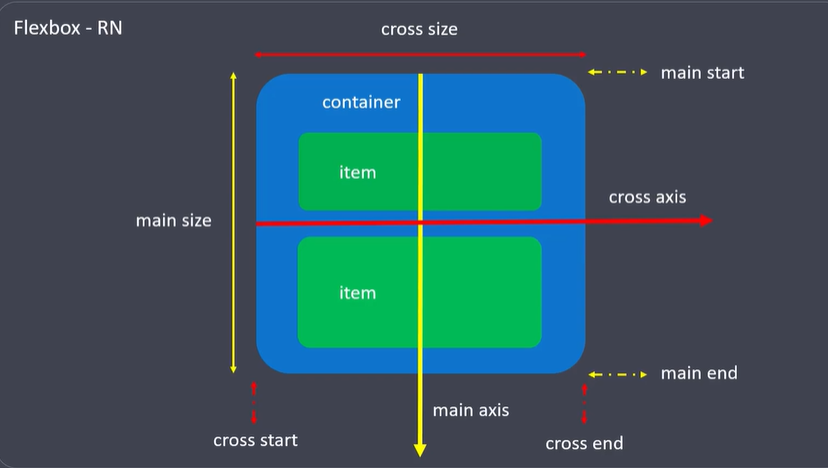
Flexbox 属性
- flexDirection
- 声明主轴方向: row(web 默认) |column (rn 默认)
- justifyContent
- 声明项目在主轴上的对齐方式
- alignItems
- 声明项目在交叉轴上的对齐方式
- flex
- 声明项目在主轴上的尺寸比例
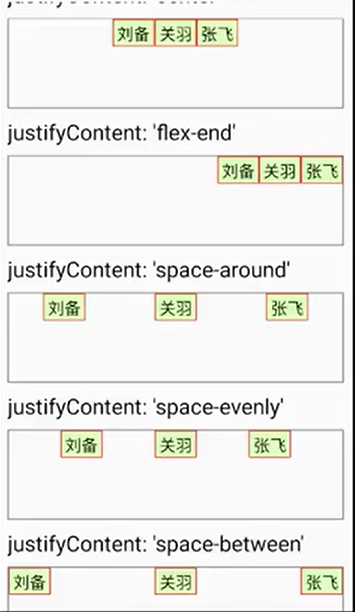
响应式布局
Flexbox
Dimensions(获取手机屏幕的尺寸)
import { Dimensions } from "react-native";
const windowWidth = Dimensions.get("window").width;
const windowHeight = Dimensions.get("window").height;
import { Text, StyleSheet, View, Dimensions } from "react-native";
import React, { Component } from "react";
const windowWidth = Dimensions.get("window").width;
const windowHeight = Dimensions.get("window").height;

export default class App extends Component {
  render() {
    return (
      <View>
        <Text>{windowWidth}</Text>
        <Text>{windowHeight}</Text>
        <Text style={styles.h3}>主轴方向</Text>
        <View style={[styles.container]}>
          <Text>刘备</Text>
          <Text>关于</Text>
          <Text>张飞</Text>
        </View>
      </View>
    );
  }
}

const styles = StyleSheet.create({
  container: {
    height: windowHeight,
    margin: 10,
    borderWidth: 1,
    borderColor: "#ddd",
  },
  h3: {
    fontSize: 24,
    marginHorizontal: 50,
    backgroundColor: "red",
  },
  flexColumn: {
    flexDirection: "column-reverse",
  },
});
组件和 api
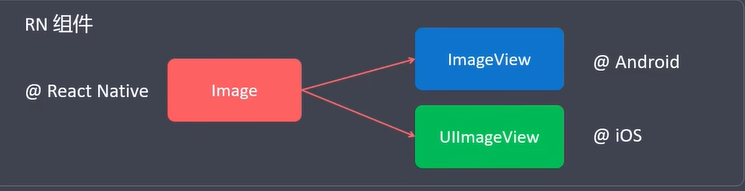
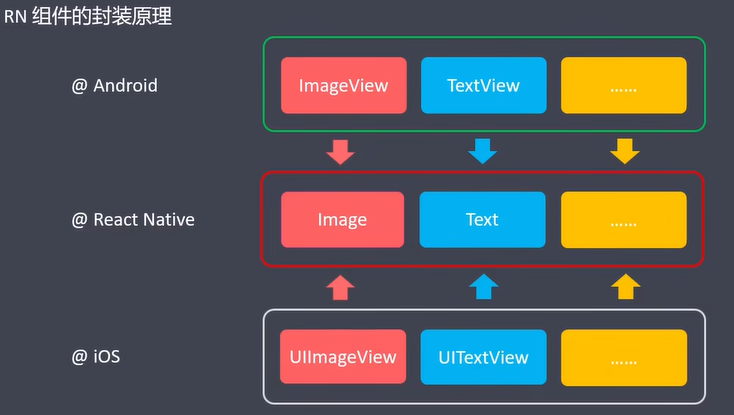
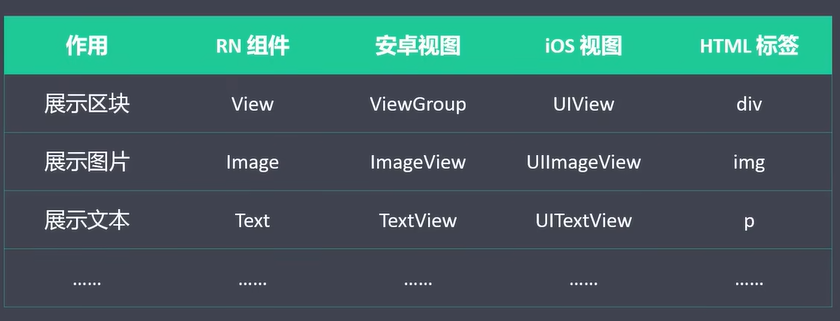
rn 中的核心组件,是对原生组件的封装
- 原生组件 Android 或 ios 内的组件
- 核心组件 rn 中最常用的,来在 react-native 的组件
核心组件
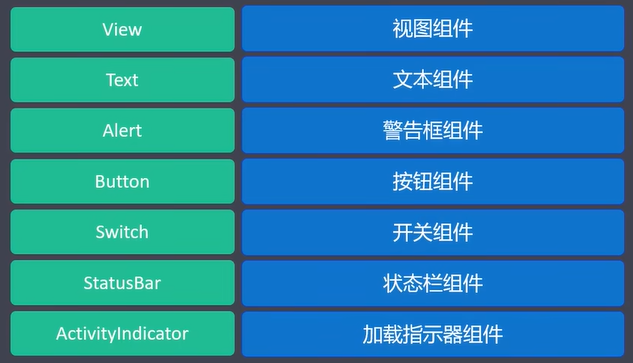
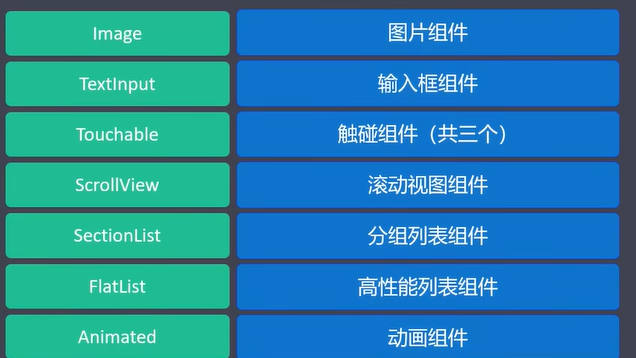
核心组件介绍
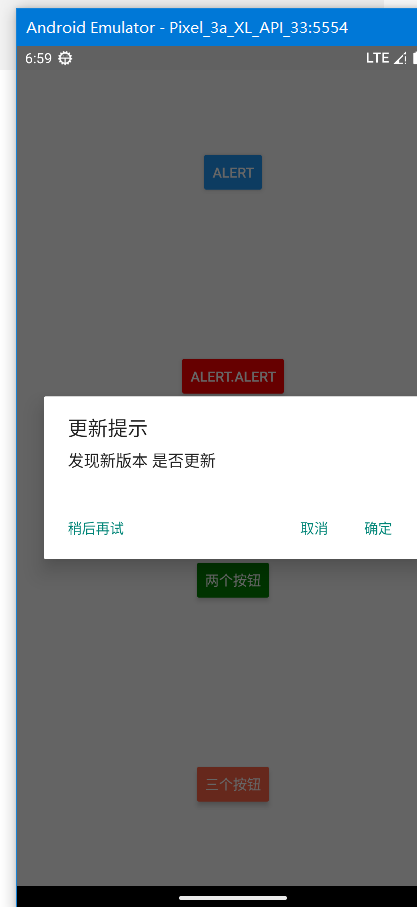
Alert Button
import { Text, StyleSheet, View, Alert, Button } from "react-native";
import React, { Component } from "react";

export default class App extends Component {
  createTwoButtonAlert = () => {
    Alert.alert("警告标题", "警告内容", [
      {
        text: "取消",
        onPress: () => console.log("cancel"),
        style: "cancel", //有的手机能看到有的手机不明显
      },
      {
        text: "确定",
        onPress: () => console.log("ok"),
        style: "default",
      },
    ]);
  };
  createThreeButtonAlert = () => {
    Alert.alert("更新提示", "发现新版本 是否更新", [
      {
        text: "稍后再试",
        onPress: () => console.log("稍后提醒我"),
        style: "default",
      },
      {
        text: "取消",
        onPress: () => console.log("cancel"),
        style: "cancel",
      },
      {
        text: "确定",
        onPress: () => console.log("ok"),
        style: "default",
      },
    ]);
  };
  render() {
    return (
      <View style={styles.container}>
        <Button
          title="alert"
          onPress={() => {
            alert("我是一个按钮");
          }}
        ></Button>

        {/* 不能在button里写style */}
        <Button
          title="Alert.alert"
          color={"red"}
          onPress={() => {
            Alert.alert("我是一个按钮");
          }}
        ></Button>
        <Button
          title="两个按钮"
          color={"green"}
          onPress={this.createTwoButtonAlert}
        ></Button>
        <Button
          title="三个按钮"
          color={"tomato"}
          onPress={this.createThreeButtonAlert}
        ></Button>
      </View>
    );
  }
}

const styles = StyleSheet.create({
  container: {
    flex: 1,
    justifyContent: "space-around",
    alignItems: "center",
  },
});
Switch StatusBar
- Switch 开关
- StatusBar 手机顶部的状态栏
import { Text, StyleSheet, View, StatusBar, Switch } from "react-native";
import React, { Component } from "react";

export default class App extends Component {
  constructor() {
    super();
    this.state = {
      hideStatusBar: false,
    };
  }
  toggleStatusBar = () => {
    this.setState({
      hideStatusBar: !this.state.hideStatusBar,
    });
  };
  render() {
    return (
      <View style={styles.container}>
        <StatusBar
          hidden={this.state.hideStatusBar}
          backgroundColor="red" // 只在安卓有效
          // 如果是要全屏效果可以把状态条隐藏起来
          barStyle={"dark-content"}
        ></StatusBar>
        <Switch
          trackColor={{ false: "red", true: "green" }}
          thumbColor={"blue"}
          value={this.state.hideStatusBar}
          onValueChange={this.toggleStatusBar}
        />
        <Text>App</Text>
      </View>
    );
  }
}

const styles = StyleSheet.create({
  container: {
    flex: 1,
    justifyContent: "center",
    alignItems: "center",
  },
});
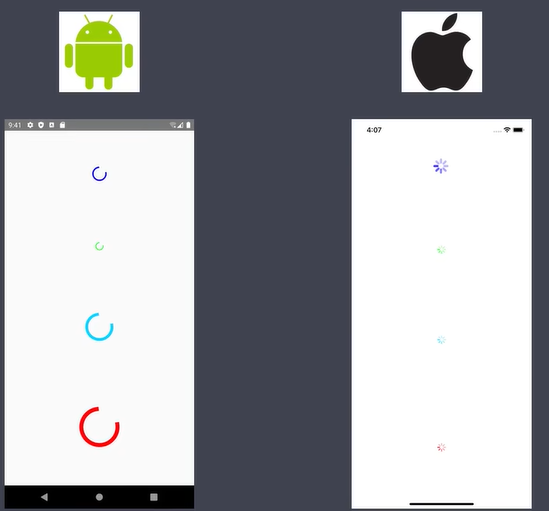
ActivityIndicator 等待组件
安卓和 ios 展示效果不一样
import {
  StyleSheet,
  Text,
  View,
  ActivityIndicator,
  Platform,
} from "react-native";
import React from "react";

export default function App() {
  // 平台
  if (Platform.OS == "android") {
    alert("当前是安卓应用");
  }
  if (Platform.OS == "ios") {
    alert("当前是ios");
  }

  return (
    <View style={[styles.container]}>
      <ActivityIndicator color={"blue"} size={"large"}></ActivityIndicator>

      <ActivityIndicator color={"#00d0ff"} size={100}></ActivityIndicator>
      {/* 数字指定大小只在安卓下有效 */}
      <ActivityIndicator color={"red"} size={100}></ActivityIndicator>
    </View>
  );
}

const styles = StyleSheet.create({
  container: {
    flex: 1,
    justifyContent: "space-around",
  },
});
imge 组件
加载方式
- 本地路径
- 图片的 url 地址
- 图片的 Base64 字符串
import { Text, StyleSheet, View, Image, Dimensions } from "react-native";
import React, { Component } from "react";

export default class App extends Component {
  render() {
    return (
      <View style={styles.container}>
        <Text>1111111</Text>
        <Image
          style={[styles.itemImage]}
          source={require("./image/1.jpeg")}
        ></Image>
        <Text>1111111</Text>
      </View>
    );
  }
}

const styles = StyleSheet.create({
  container: {
    flex: 1,
    justifyContent: "center",
    alignItems: "center",
  },
  itemImage: {
    height: 200,
    width: Dimensions.get("window").width,
    marginVertical: 200,
  },
});
TextInput 输入框
import {
  Text,
  StyleSheet,
  View,
  TextInput,
  Dimensions,
  Button,
  Alert,
} from "react-native";
import React, { Component } from "react";

export default class App extends Component {
  constructor() {
    super();
    this.state = {
      username: "",
      password: "",
      phone: "",
    };
  }
  doLogin = () => {
    alert(this.state.username);
  };
  render() {
    return (
      <View style={styles.container}>
        <TextInput
          style={styles.input}
          placeholder={"请输入用户名"}
          value={this.state.username}
          onChangeText={(value) => {
            this.setState({
              username: value,
            });
          }}
        />

        <TextInput
          style={styles.input}
          placeholder={"请输入密码"}
          value={this.state.password}
          onChangeText={(value) => {
            this.setState({
              password: value,
            });
          }}
          // 密码
          secureTextEntry={true}
        />

        <TextInput
          style={styles.input}
          placeholder={"请输入手机号"}
          // 数字键盘
          keyboardType={"phone-pad"}
          value={this.state.phone}
          onChangeText={(value) => {
            this.setState({
              phone: value,
            });
          }}
        />

        {/* 文本域 */}
        <TextInput
          style={styles.input}
          placeholder={"请输入简介"}
          multiline={true}
          // 5行
          numberOfLines={5}
          textAlignVertical="top"
        />

        <View style={[styles.btn]}>
          <Button title={"登录"} onPress={this.doLogin}></Button>
        </View>
        <Text>App</Text>
      </View>
    );
  }
}

const styles = StyleSheet.create({
  container: {
    flex: 1,
    justifyContent: "center",
  },
  input: {
    width: Dimensions.get("window").width - 20,
    margin: 10,
    borderWidth: 1,
    borderColor: "red",
    marginHorizontal: 5,
  },
  btn: {
    margin: 10,
  },
});
Touchable 触碰组件
- TouchableHighlight
- 触碰后高亮展示
- TouchableOpacity
- 触碰后 透明度降低(模糊显示)
- TouchableWithoutFeedback
- 触碰后无任何相应
import {
  Text,
  StyleSheet,
  View,
  TouchableHighlight,
  TouchableOpacity,
  TouchableWithoutFeedback,
} from "react-native";
import React, { Component } from "react";

export default class App extends Component {
  render() {
    return (
      <View style={styles.container}>
        <TouchableHighlight onPress={() => console.log("触碰高亮")}>
          <View style={[styles.item]}>
            <Text>高亮</Text>
          </View>
        </TouchableHighlight>

        {/* 常用 */}
        <TouchableOpacity onPress={() => console.log("透明度变化")}>
          <View style={[styles.item]}>
            <Text>高亮</Text>
          </View>
        </TouchableOpacity>

        <TouchableWithoutFeedback onPress={() => console.log("无响应")}>
          <View style={[styles.item]}>
            <Text>高亮</Text>
          </View>
        </TouchableWithoutFeedback>
      </View>
    );
  }
}

const styles = StyleSheet.create({
  container: {
    flex: 1,
    justifyContent: "center",
    alignItems: "center",
  },
  item: {
    marginBottom: 10,
    borderWidth: 1,
    padding: 10,
  },
});
ScrollView 滚动视图
常用属性
* style
* contentContainerStyle={{margin:30}}  针对内容做样式
* showsVerticalScrollIndicator =  {false}  隐藏滚动条
* horizontal = {true} 水平滚动
SafeAreaView 安全区域视图
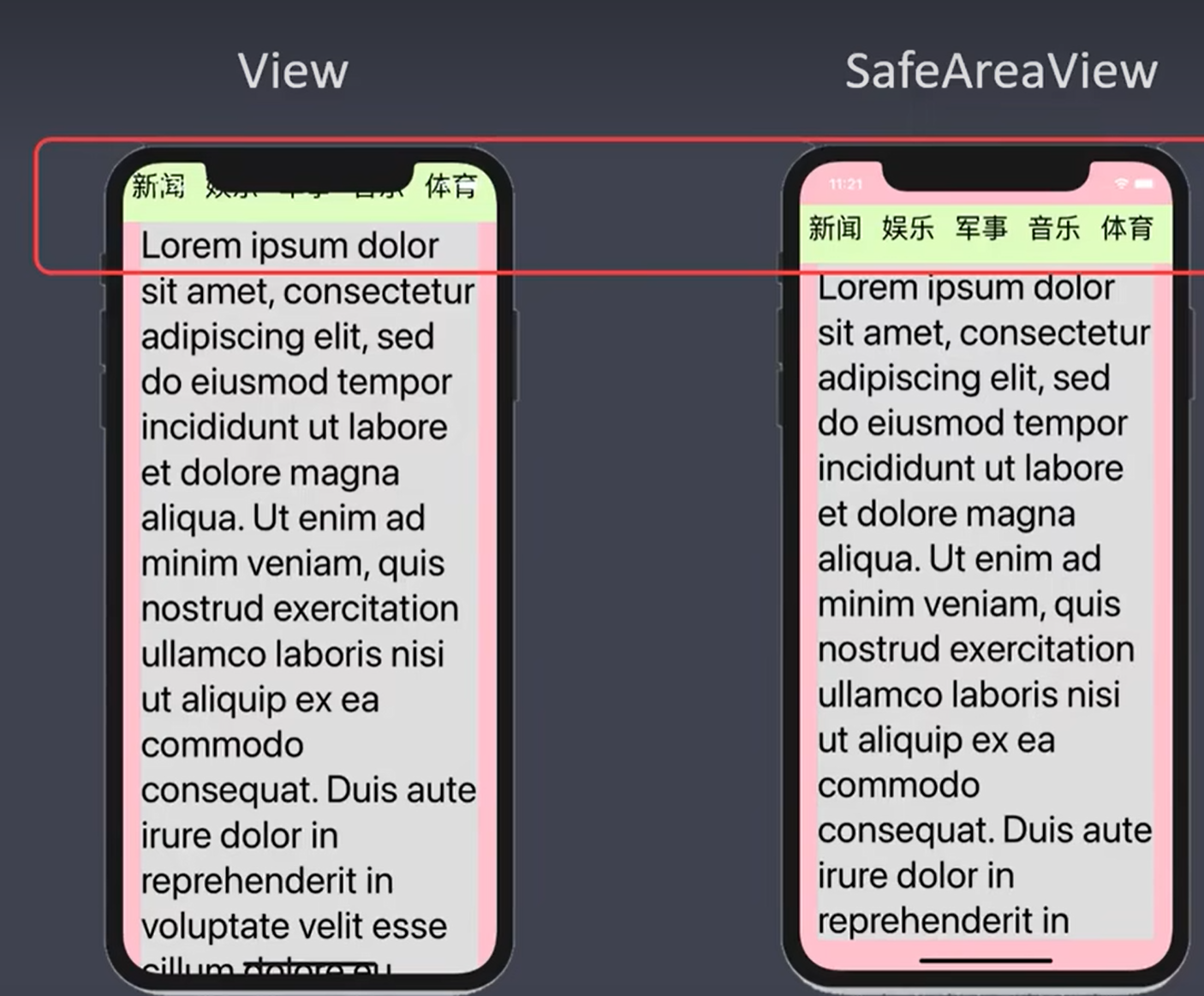
问题:
ScrollView 安卓下底部部分内容不可见
处理
<View style={{ height: Platform.OS == "ios" ? 0 : 100 }}></View>
SectionList 有分组效果的列表
- keyExtractor 唯一索引
- renderItem 具体渲染的内容
- renderSectionHeader 渲染头
- ItemSeparatorComponent 项的分隔组件
- ListEmptyComponent={} // 空的时候展示
下拉刷新上拉刷新
<SafeAreaView
  //下拉刷新
  refreshing={false} //刷新小动画
  onRefresh={() => {
    alert("下拉刷新");
  }}
  onEnReachedThreshold={0.1} //声明触底的比率 0.1表示距离底部10%
  onEndReached={() => {
    alert("到底");
  }}
  //声明列表的头部
  ListHeaderComponent={() => {
    return <Text style={{ fontSize: 40 }}>三国英雄榜</Text>;
  }}
  //声明列表的尾部
  ListFooterComponent={() => {
    return <Text style={{ fontSize: 40 }}>没有更多了</Text>;
  }}
></SafeAreaView>
FlatList 展示列表
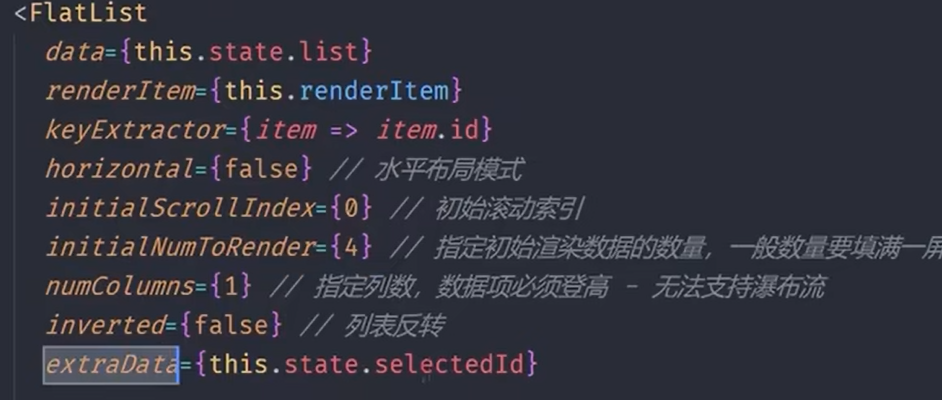
大部分属性同上
- horizontal={true} //水平布局模式
- initialScrollIndex={1} //初始的滚动索引 默认为 0
- initialNumToRender = {3} 默认先加载前几条 懒加载 第一屏加载 3 条
- numColumns = {3} 指定列数 每一列高度是固定的 不支持瀑布流效果
- inverted = {true} 是否反转 列表反转
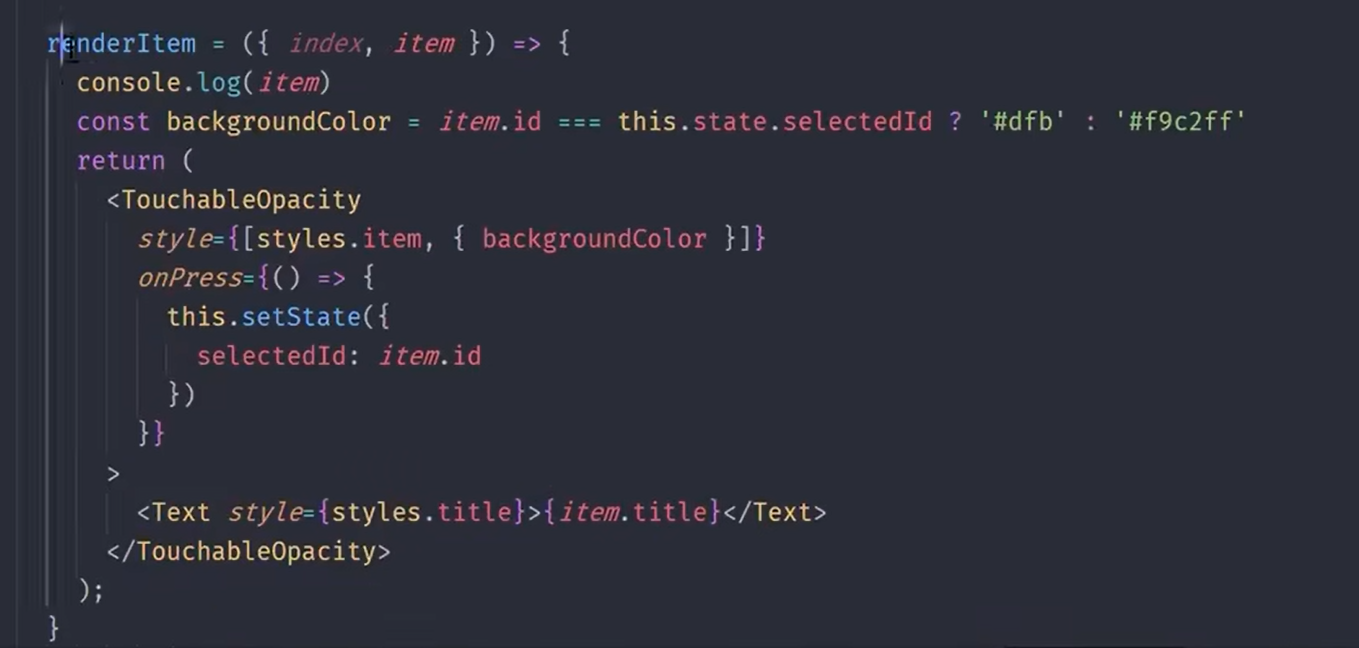
- extraData={} 除了 data 以外的数据
Animated 动画效果
- Animated.View
- Animated.Text
- Animated.ScrollView
- Animated.Image
创建动画
- 创建初始值
- Animated.Value() 单个值
- Animated.ValueXY() 向量值
- 将初始值绑定的动画组件上
- 一般将其绑定到某个样式属性下,例如:opacity, translate
- 通过动画类型 api 一帧一帧的更改初始值
- Animated.decay() 加速效果
- Animated.spring() 弹跳效果
- Animated.timing() 时间渐变效果
第三方组件
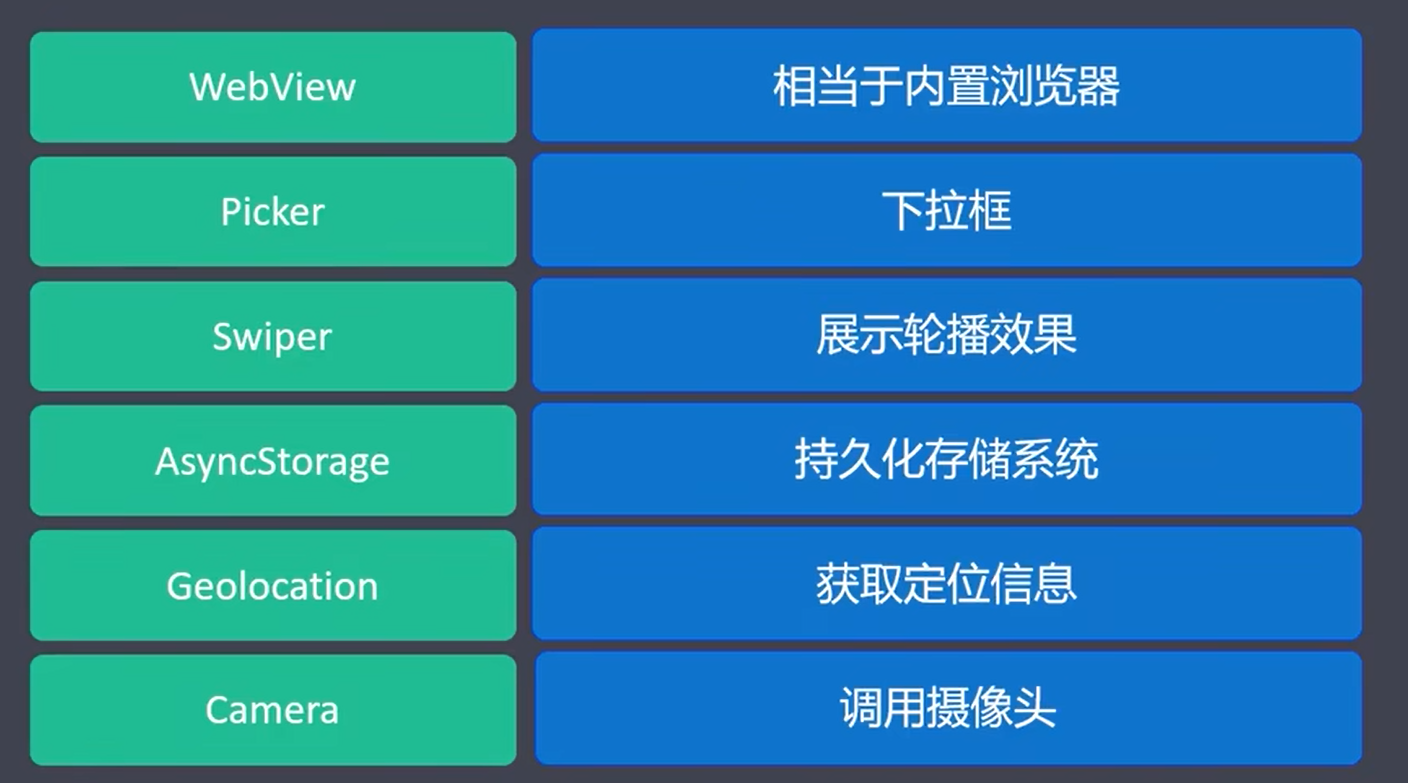
webView
- 安装
- yarn add react-native-webview
- 配置
- https://github.com/react-native-webview/react-native-webview
- 使用
- 直接指定 uri 地址
- 直接渲染 html 代码
Picker
- 安装
- yarn add @react-native-picker/picker
- 配置
- https://github.com/react-native-picker/picker
- 注意不同版本的配置方式不同
- 使用
- 注意平台之间的差异(Android/ios)
import React, { Component } from "react";
import { WebView } from "react-native-webview";
import { Picker } from "@react-native-picker/picker";
import { View, Text } from "react-native";
class App extends Component {
  constructor() {
    super();
    this.state = {
      selectedLanguage: null,
    };
    this.pickerRef = React.createRef();
  }

  setSelectedLanguage(value) {
    this.setState({
      selectedLanguage: value,
    });
  }
  render() {
    return (
      <View>
        <Picker
          mode="dropdown" // 只在安卓下有效
          ref={this.pickerRef}
          selectedValue={this.state.selectedLanguage}
          onValueChange={(itemValue) => this.setSelectedLanguage(itemValue)}
        >
          <Picker.Item label="Java" value="java" />
          <Picker.Item label="JavaScript" value="js" />
        </Picker>
      </View>
    );
  }
}

export default App;
Swiper 轮播
- 安装
- yarn add react-native-swiper
- 使用
轮播必须放在 ScrollView 中 不然没效果 普通 View 视图中没有效果
AsyncStorage 相当于 localstorage
- 安装
- yarn add @react-native-async-storage/async-storage
- 配置
- https://github.com/react-native-async-storage/async-storage
- 文档 https://react-native-async-storage.github.io/async-storage/docs/link
- 使用
- 增删改查
import { Text, StyleSheet, View, Button } from "react-native";
import React, { Component } from "react";
import AsyncStorage from "@react-native-async-storage/async-storage";

export default class App extends Component {
  storeData = async (value) => {
    try {
      const jsonValue = JSON.stringify(value);
      await AsyncStorage.setItem("@storage_Key", jsonValue);
    } catch (e) {
      // saving error
    }
  };

  getData = async () => {
    try {
      const value = await AsyncStorage.getItem("@storage_Key");
      if (value !== null) {
        alert(value);
      }
    } catch (e) {
      // error reading value
    }
  };

  render() {
    return (
      <View style={[styles.container]}>
        <Button title="存储" onPress={() => this.storeData("rn")}></Button>
        <Button title="获取" onPress={this.getData}></Button>
        <Text>App</Text>
      </View>
    );
  }
}

const styles = StyleSheet.create({
  container: {
    flex: 1,
    justifyContent: "center",
    alignItems: "center",
  },
});
封装 AsyncStorage
- set(key,value)
- delete(key) | clear(key)
- update(key,value)
- get(key)
import AsyncStorage from "@react-native-async-storage/async-storage";
class Storage {
  /**
   * 添加数据
   * @param {*} key
   * @param {*} value
   * @returns
   */
  static set(key, value) {
    return AsyncStorage.setItem(key, JSON.stringify(value));
  }
  /**
   * 获取数据
   * @param {*} key
   * @returns
   */
  static get(key) {
    return AsyncStorage.getItem(key)
      .then((value) => {
        if (value && value !== "") {
          const jsonValue = JSON.parse(value);
          return jsonValue;
        }
      })
      .catch(() => null);
  }
  /**
   *
   * @param {string} key
   * @param {mixed} newValue
   * @returns {Promise}
   */
  static update(key, newValue) {
    return AsyncStorage.getItem(key).then((oldValue) => {
      newValue =
        typeof newValue == "string"
          ? newValue
          : Object.assign({}, oldValue, newValue);
      return AsyncStorage.setItem(key, newValue);
    });
  }

  static delete(key) {
    return AsyncStorage.removeItem(key);
  }

  static clear() {
    return AsyncStorage.clear();
  }
}
export default Storage;
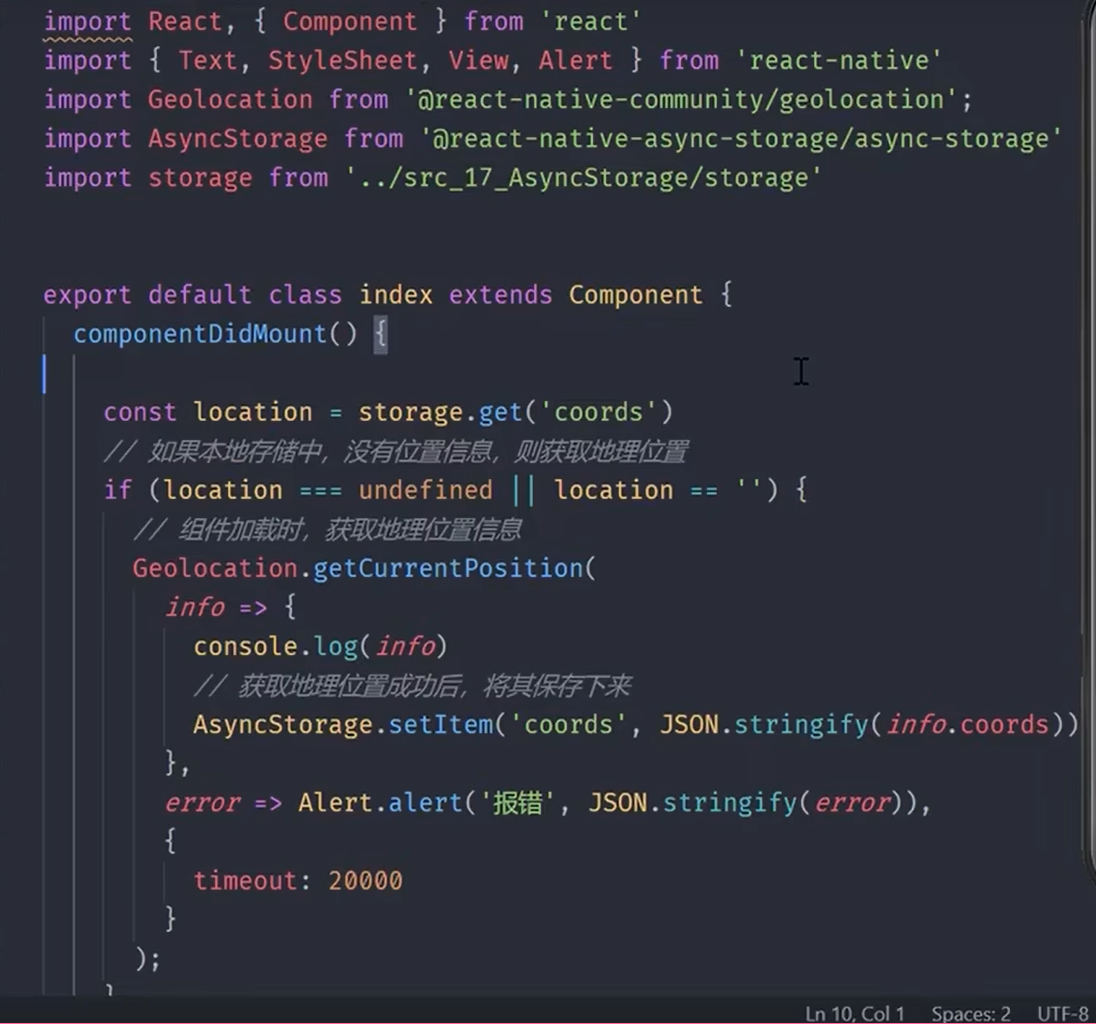
Geolocation 定位
- 安装
- yarn add @react-native-community/geolocation
- 配置
- https://github.com/react-native-geolocation/react-native-geolocation
- 添加获取定位信息的授权许可
- 使用
- 通过手机获取经纬度信息
Camera
- 安装
- npm install react-native-camera --save
- 配置
- https://github.com/react-native-camera/react-native-camera
- 使用
- 拍照 扫码 人脸识别
https://github.com/mrousavy/react-native-vision-camera
https://www.npmjs.com/package/react-native-alarm-clock
react-native-image-picker
- 安装
- yarn add react-native-image-picker
- 配置
- https://github.com/react-native-image-picker/react-native-image-picker
- 与 Camera 一致
- 使用
- 调用摄像头
- 访问相册
自定义组件